![Xappex-logo-with-name.png]](https://knowledge.xappex.com/hs-fs/hubfs/Xappex-logo-with-name.png?height=40&name=Xappex-logo-with-name.png)
In G-Connector, scheduled jobs are driven by Time-driven Triggers, which are only accessible to the user who created them and nobody else.
How to transfer a Scheduled job in G-Connector
If you find yourself in a situation when scheduled jobs need to be transferred to a new user, please follow the step-by-step instructions below.
- Log in to Google Sheets as the user who originally created the scheduled jobs.
- Click on Extensions -> G-Connector for Salesforce -> Manage Schedules or Extensions -> G-Connector for Salesforce -> Launch if you want to display the side panel view and click Automations -> Manage Schedules.
- In the Manage Schedules dialog box, select all schedules that you would like to transfer and click on the Export button:
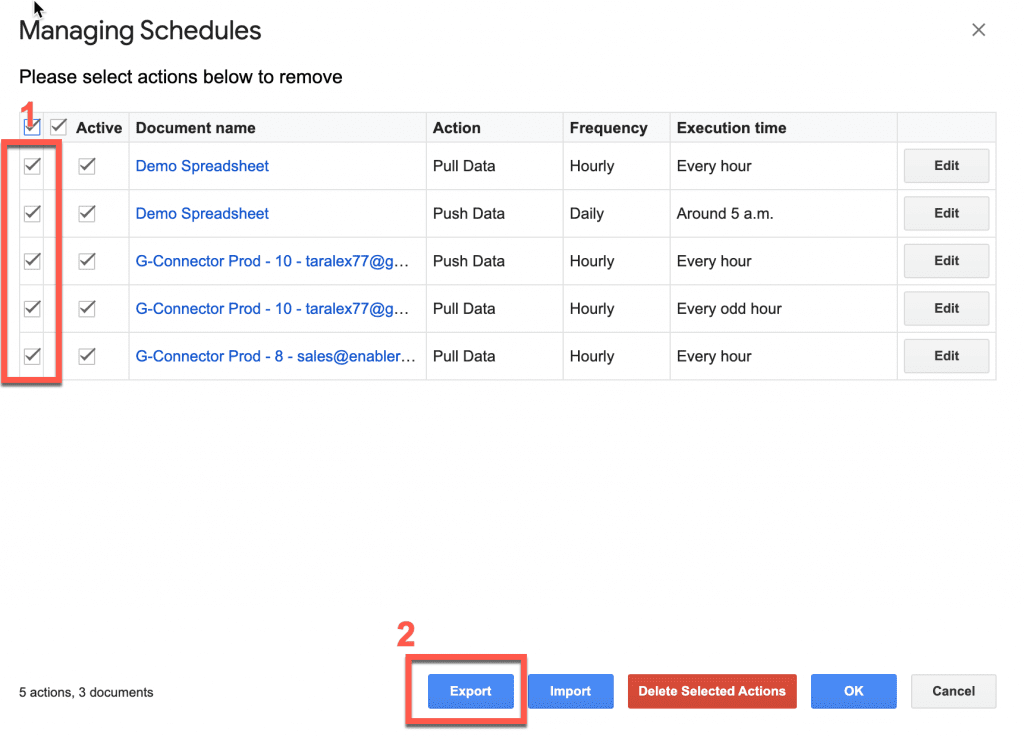
- You’ll get a JSON file downloaded that contains all the information about scheduled jobs for this user.
- Now you’ll need to log in to Google Sheets as the new user, whom you are transferring the scheduled jobs to.
- Again, click on Extensions -> G-Connector for Salesforce -> Manage Schedules and click on Import:
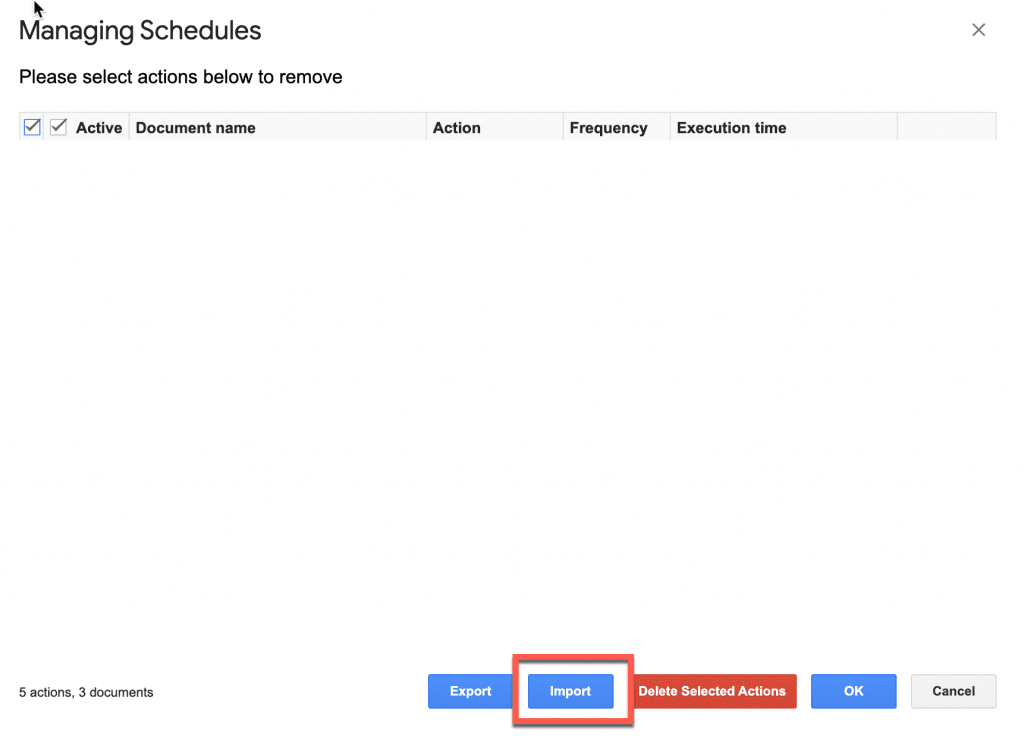
- Browse to locate the saved export file and import it.
- When the import is completed, you’ll get the following message:
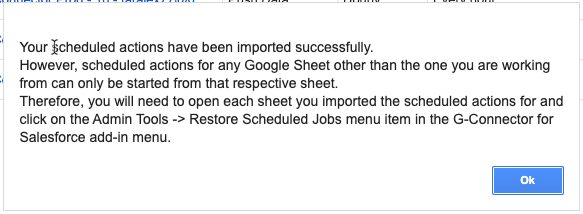
- Now, as described in the dialog box, for each sheet listed in the Manage Schedules dialog box:
– click on the link to open the respective document
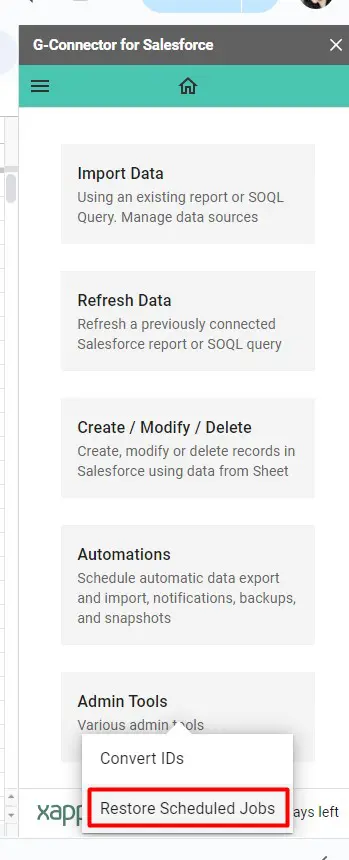
– when it opens (provided that you have access to it), click on Extensions -> G-Connector for Salesforce -> Admin Tools -> Restore Scheduled Jobs: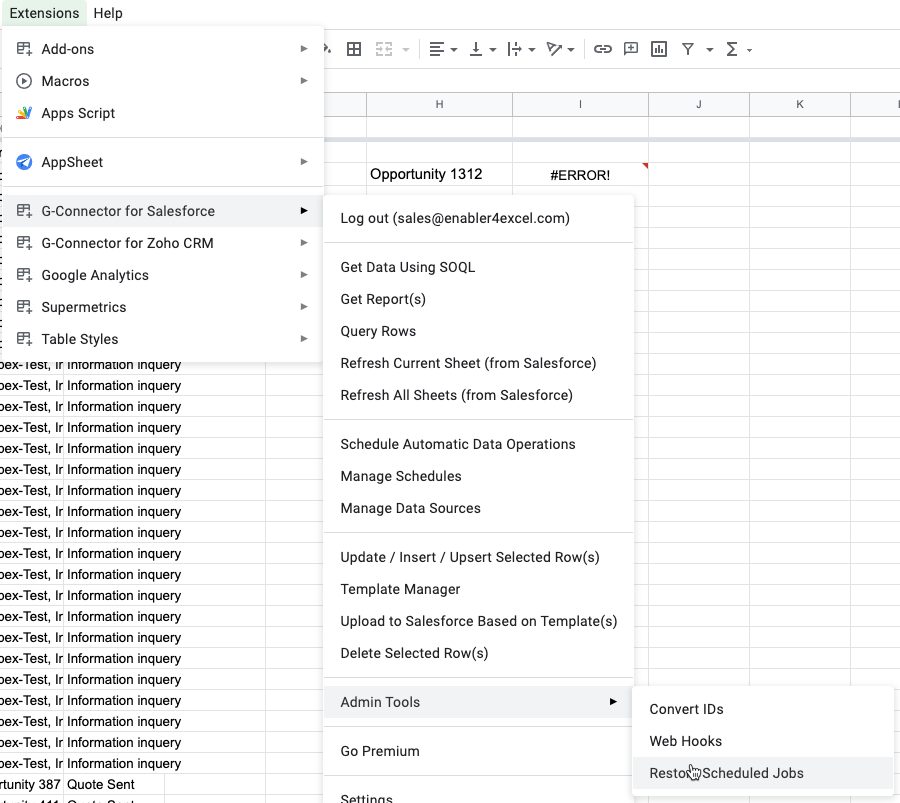
OR from G-Connector’s side panel, click Admin Tools -> Restore Scheduled Jobs:
Several considerations before you transfer your schedules:
-
That user needs to have edit access to all the documents where you have the automations scheduled.
-
The automations are linked with specific Salesforce accounts. If this account gets deactivated – they will stop working.
So given the above, it may be easier to simply create new automations for the specific sheets by the user who’s taking over.